

Agent harness
Tembo is harness and model agnostic. For each agent you configure, you pick the harness (and model) that runs in the session it spawns, for example Claude Code with Sonnet 4.6, Codex with GPT-5.4, or Cursor. Set a default per agent, or override per session. See Models for the full supported model list, BYOK details, and AWS Bedrock BYOK support.Claude Code
Claude Code
Anthropic’s Claude models. Best balance of quality, reliability, and cost.Models: Opus 5.5, Opus 5, Fable 5.1, Fable 5, Sonnet 5, Opus 4.8, Opus 4.7, Opus 4.6, Sonnet 4.6, Opus 4.5, Haiku 4.5
Codex
Codex
OpenAI’s GPT models with configurable reasoning effort (low, medium, high, xhigh). GPT-6 Astra, GPT-6 Sol, GPT-5.6 Sol, and GPT-5.6 Terra also support max and ultra; GPT-6 Luna and GPT-5.6 Luna also support max.Models: GPT-6 Astra, GPT-6 Sol, GPT-6 Luna, GPT-5.6 Sol, GPT-5.6 Terra, GPT-5.6 Luna, GPT-5.5 Pro, GPT-5.5, GPT-5.4, GPT-5.3 Codex, GPT-5.4 Mini, GPT-5.4 Nano
Cursor
Cursor
Multi-provider via Cursor CLI.Models: Composer 2.5, Composer 2, Composer 2 Fast, Composer 1.5, Opus 5.5, Opus 5, Sonnet 5, Opus 4.8, Opus 4.7, Opus 4.6, Sonnet 4.6, Opus 4.5, GPT-5.6 Sol, GPT-5.6 Terra, GPT-5.5, GPT-5.3 Codex, GPT-5.3 Codex Spark, Gemini 3.1 Pro, Gemini 3.5 Flash, Grok 4.6
Opencode
Opencode
Multi-provider support: Anthropic, OpenAI, and OSS models.Models: Opus 5.5, Opus 5, Fable 5.1, Fable 5, Sonnet 5, Opus 4.8, Opus 4.7, Opus 4.6, Sonnet 4.6, Opus 4.5, Haiku 4.5, GPT-6 Astra, GPT-6 Sol, GPT-6 Luna, GPT-5.6 Sol, GPT-5.6 Terra, GPT-5.6 Luna, GPT-5.5 Pro, GPT-5.5, GPT-5.4, GPT-5.3 Codex, GPT-5.4 Mini, GPT-5.4 Nano, Gemini 3.1 Pro, Gemini 3.5 Flash, GLM 5.3, GLM 5.3 Flash, Kimi K3, DeepSeek V4 Pro, DeepSeek V4.1 Flash, MiniMax M2.7, MiniMax M3
Amp
Amp
Claude-powered with automatic model selection.
Pi
Pi
A minimal, extensible terminal coding harness with multi-provider support.Models: Opus 5.5, Opus 5, Fable 5.1, Fable 5, Sonnet 5, Opus 4.8, Opus 4.7, Opus 4.6, Sonnet 4.6, Opus 4.5, Haiku 4.5, GPT-6 Astra, GPT-6 Sol, GPT-6 Luna, GPT-5.6 Sol, GPT-5.6 Terra, GPT-5.6 Luna, GPT-5.5 Pro, GPT-5.5, GPT-5.4, GPT-5.3 Codex, GPT-5.4 Mini, GPT-5.4 Nano, GPT-5.2, GLM 5.3, GLM 5.3 Flash, Kimi K3, DeepSeek V4 Pro, DeepSeek V4.1 Flash, MiniMax M2.7, MiniMax M3
fx
fx
A tiny, open, native coding agent with multi-provider model support.Models: Opus 5.5, Opus 5, Fable 5.1, Fable 5, Sonnet 5, Opus 4.8, Opus 4.7, Opus 4.6, Sonnet 4.6, Opus 4.5, Haiku 4.5, GPT-6 Astra, GPT-6 Sol, GPT-6 Luna, GPT-5.6 Sol, GPT-5.6 Terra, GPT-5.6 Luna, GPT-5.5 Pro, GPT-5.5, GPT-5.4, GPT-5.3 Codex, GPT-5.4 Mini, GPT-5.4 Nano, Gemini 3.1 Pro, Gemini 3.5 Flash, GLM 5.3, GLM 5.3 Flash, Kimi K3, DeepSeek V4 Pro, DeepSeek V4.1 Flash, MiniMax M2.7, MiniMax M3
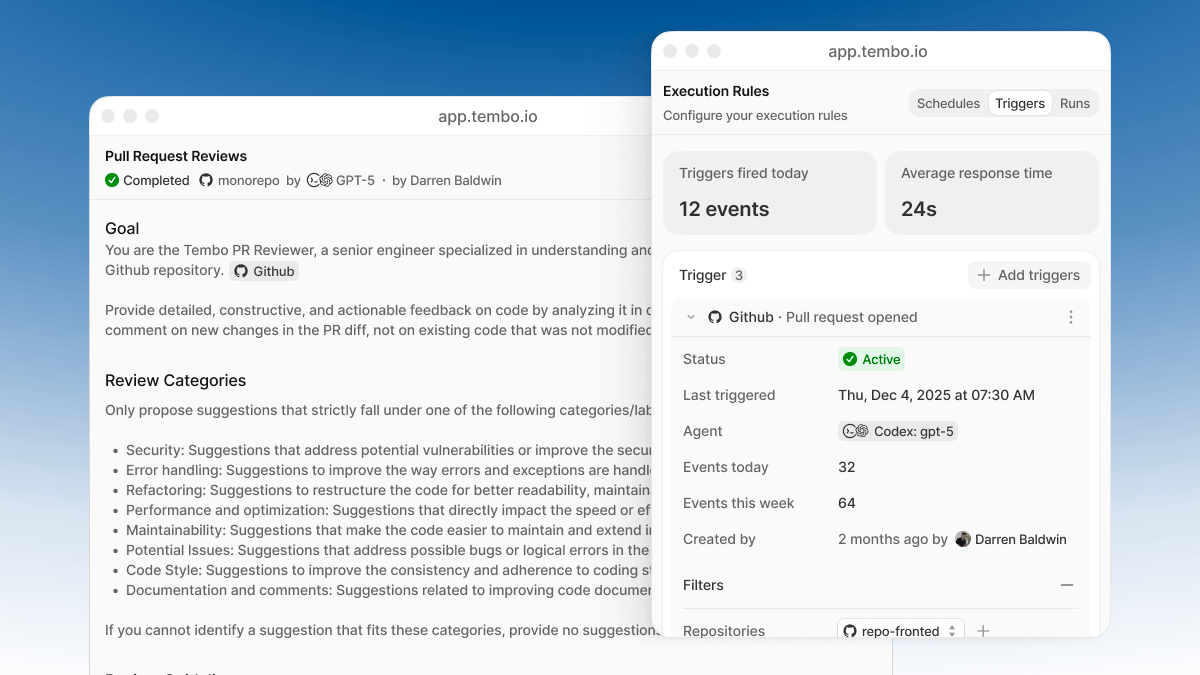
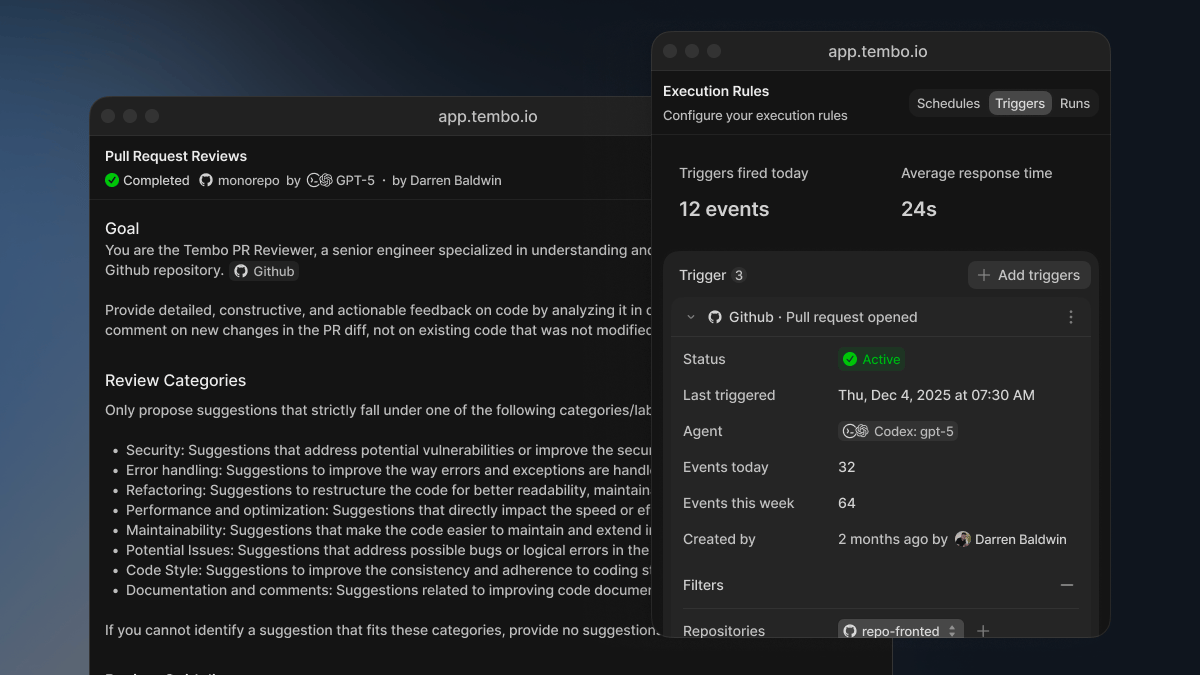
Triggers
These are just examples to give you a rough idea. You decide how to set this up, there are no limitations.Scheduled
Run agents at regular intervals.Event-driven
React to events from your integrations in real-time.Trigger through webhooks
You can trigger an agent on demand from external systems using the agent’s webhook trigger endpoint. The JSON payload is passed to the agent as event context, so your instructions can reference it directly. For example, you could write instructions like “Fix the issue at the URL provided in the event payload”. If you need to transform the payload or fetch extra data before the agent starts, use an agent post-trigger hook. The hook can readTRIGGER_PAYLOAD and print Markdown, text, or JSON to standard output; Tembo adds that output to the agent’s starting context.
Creating an agent
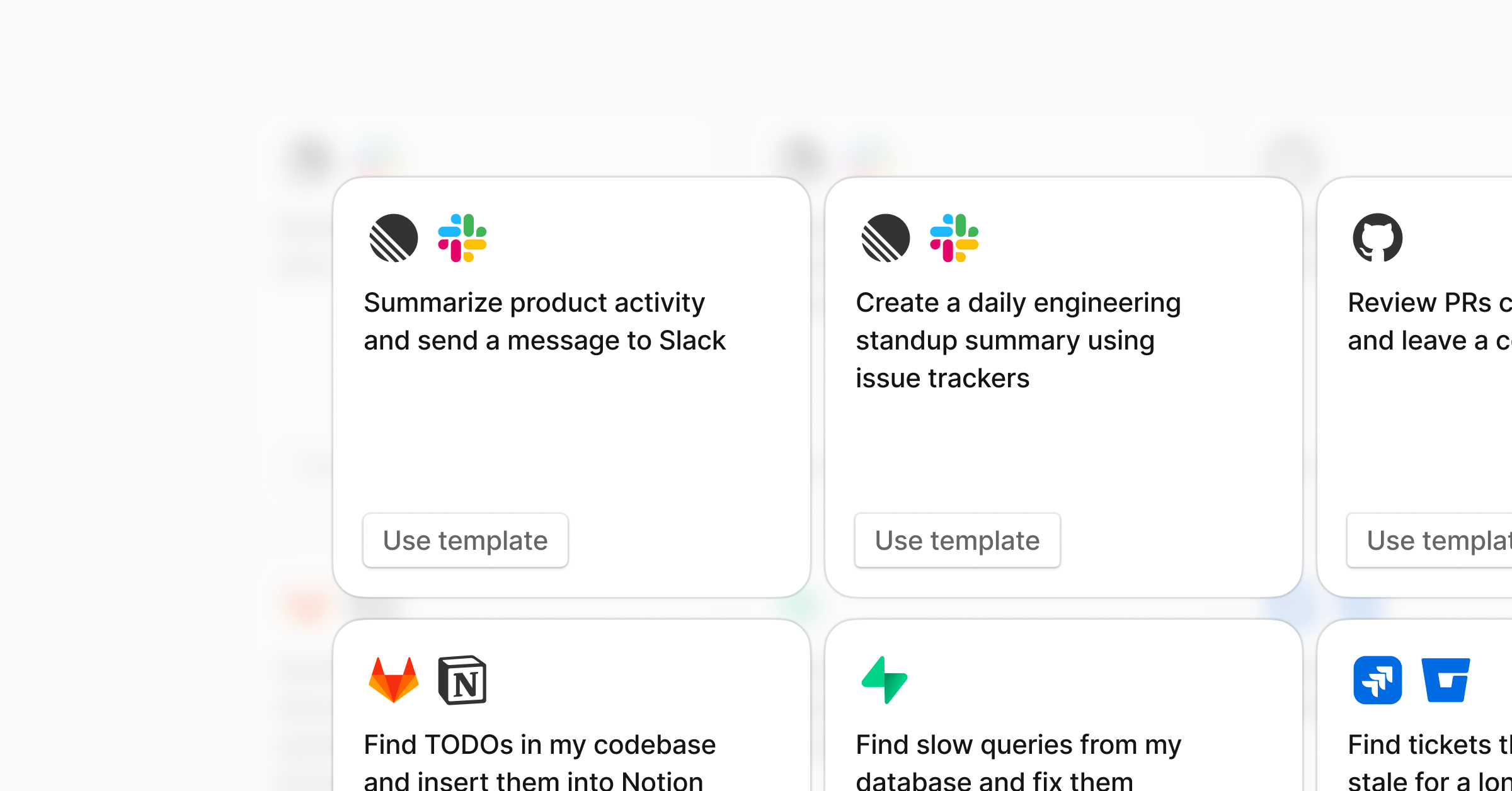
From a template
- Go to Agents in the dashboard
- Click Templates
- Pick a template and click Use template
- Customize the instructions and enable
From scratch
- Click New Agent
- Write your instructions
- Add triggers (schedule and/or event-based)
- Select agent harness
- Instruct MCP servers or integrations
- Optionally select a project in run options so runs start from that prepared environment
- Save and enable
Macros
You can trigger a specific agent on demand from anywhere you can mention@tembo by using its macro.
review:
Beyond code
Agents aren’t limited to engineering work. With MCP servers, agents can work across your entire stack.
Any tool with an MCP server can be used as an agent.
You can also do this on-demand from Slack without setting up an agent: